.png?width=200&height=82&name=Beeple_Logo_Blue%20(1).png)
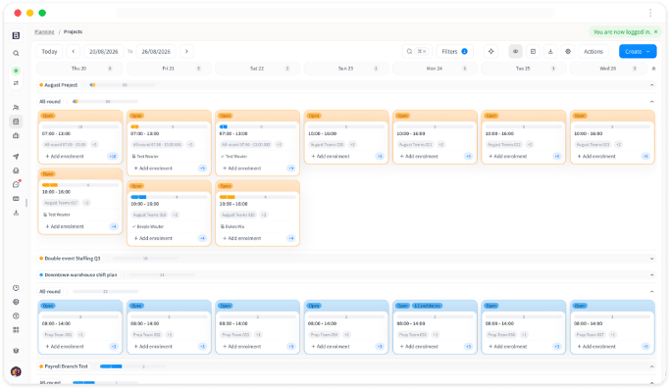
The overall layout is cleaner and gives you more room to work with:
- The main navigation bar has moved from the top of the screen to the left side. Click it to expand or collapse it.
- The right hand panel (where you make enrolments, review candidacies, etc.) is now a hover panel that only appears when you need it, instead of taking up permanent screen space. This means more shifts fit on your screen at once, even on a smaller laptop.
Find anyone and anything in seconds
A new global search bar lets you jump straight to any collaborator, project, subproject, or team, without clicking through the hierarchy.
How to use it:
- Click the search bar at the top of the Planning Board (or use the
⌘K/Ctrl+Kshortcut). - Type the name of a collaborator, project, subproject, or team.
- Select the result from the dropdown. The board opens directly on that item.
This also works to check where someone is scheduled. Search a collaborator's name and you'll instantly see every shift they're enrolled on.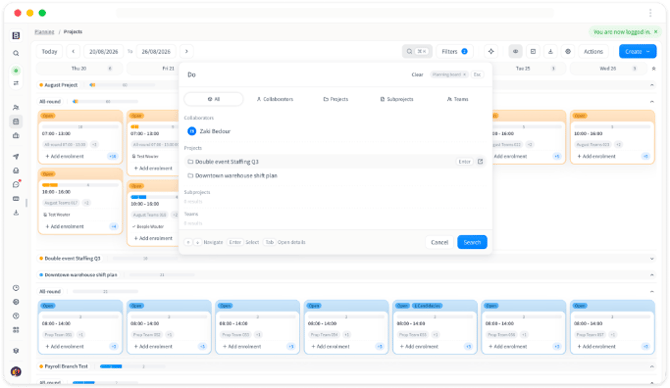
Card details, your way
You can now choose exactly what information shows on your cards, and set it up separately for Suggestions, Candidacies, and Enrolments.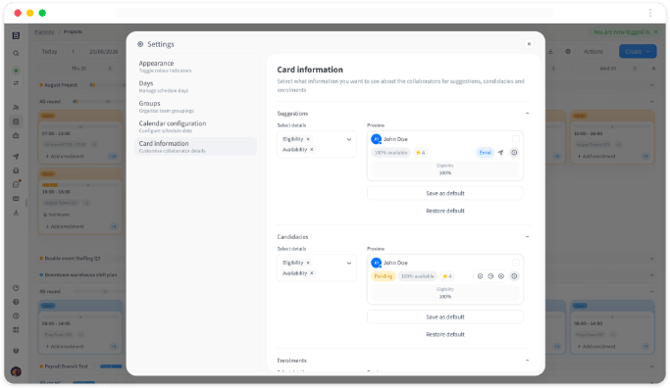
How to update it:
- Open Settings (gear icon) and go to Card information.
- Choose the tab you want to configure: Suggestions, Candidacies, or Enrolments.
- Toggle on the fields you want visible, for example hours worked, number of enrolments, mobile number, function, rating, availability, or eligibility.
- Save your choice as the default.
Once saved, that information shows directly on the card, so you don't need to open a collaborator's profile to see it.
Your panel, your placeThe side panel that opens when you click a shift can now be docked wherever suits your workflow.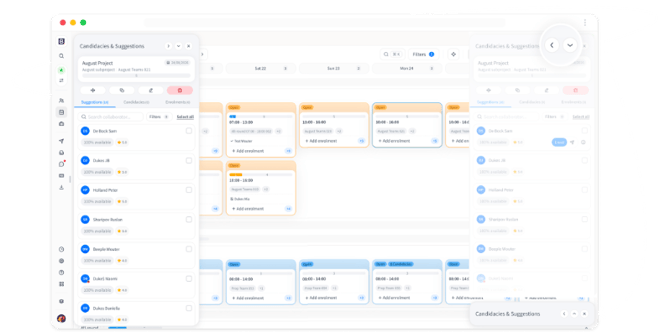
How to use it:
- Click a shift to open the panel.
- Drag it to dock on the left or right side of your screen, or collapse it entirely.
- It stays in place as you keep working, so you don't need to reposition it every time.
Filters used to take up a large panel on the left. They're now tucked behind a single Filters button at the top of the board, keeping your schedule clean while all the same filter options remain available.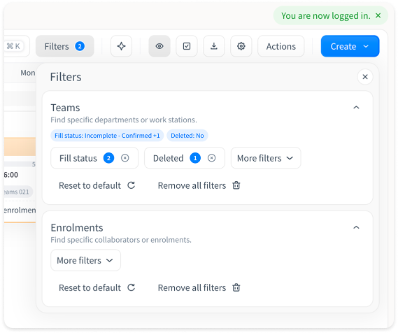
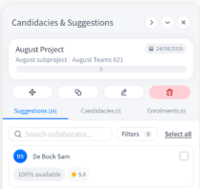
There's also a new quick way to filter by collaborator directly from a shift:
- Open a shift.
- Use the search collaborator field in the panel to find someone by name.
- Select them to make an enrolment directly, without going through the full Filters menu.
You no longer need to leave the Planning Board and go to the List view to set up new projects or teams.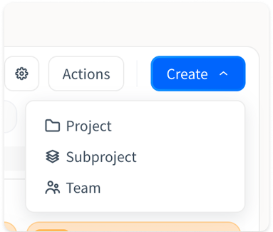
How to use it:
- Click Create in the top bar.
- Choose Project or Team.
- Fill in the details. Once a project is created, you can create teams within it the same way.
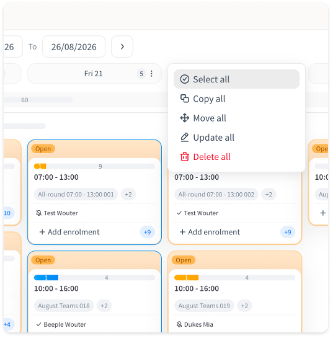
Select, copy, move, update, or delete every shift for a day, across all teams, in one click.
How to use it:
- Hover over a day in the schedule header.
- Click the actions icon that appears.
- Choose Select all, Copy all, Move all, Update all, or Delete all.
If you're only working within one project, this will only apply to that project. Admins with access to multiple projects can apply bulk actions across all of them from the same day view.
Quick actions, per teamAccess team level actions (publish/unpublish, update, move, copy) directly from the quick actions menu, without opening the full team settings.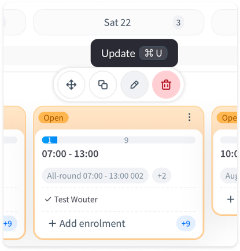
How to use it:
- Click the three dot (⋮) menu on a team.
- Choose the action you want: Publish/unpublish, Update, Move, or Copy.
Tip: the Update action also has a keyboard shortcut (⌘U / Ctrl+U) to speed things up once you're used to the layout.
Enrolment status and candidacies, at a glanceTwo small additions that save a lot of clicking:
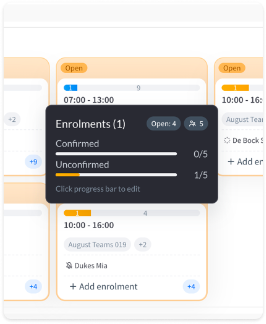
- Enrolment status: hover the progress bar on a card to see how many collaborators are confirmed versus unconfirmed. Click it to edit the numbers directly.
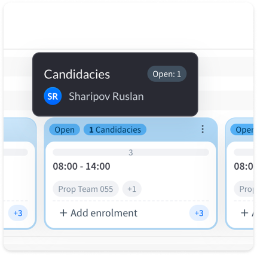
- Candidacy preview: hover the candidacies badge on a card to instantly see open slots and who has applied, without opening the full panel.
To enrol a collaborator by search:
- Open a shift.
- Search for the collaborator by name in the panel.
- Select Add enrolment.
- If everything checks out, they're enrolled immediately. If something needs your attention (for example a missing contract type, a required profile property, or an age requirement), you'll see a Review and finalise screen listing the issue.
- From there, click Enrol all to resolve everything at once, or Handle later to come back to it. Items you postpone stay open for 24 hours and can be found afterwards under Recently handled.
To handle candidacies:
- Open the shift and go to the Candidacies tab.
- For a single candidacy, use the quick actions to Accept, put in Backup, or Reject.
- For multiple candidacies, use Select all and apply the same actions in bulk from the bottom bar.
Two more settings worth knowing about, both found under Settings:
- Groups: decide how teams are grouped in your schedule. Choose any combination of Project, Function, Subproject, Department, Work station, Customer, or Start hour of shift.
- Calendar configuration: control how shift cards display information, for example showing the time and number of hours, or the team name. Several display configurations are available, so you can set it up the way that works best for your team.
- The List view and your current calendar view remain available.
- This is version 1 of the redesigned board. Version 2 is already planned, with further improvements to areas like the side panel size and quicker access to candidacies from a shift. Feedback is welcome and helps shape what comes next.
- Questions about the new Planning Board can go to our support team or to your Customer Success Manager at any time.