.png?width=200&height=82&name=Beeple_Logo_Blue%20(1).png)
PDF export templates combine text and dictionary codes. Remember, codes within a table will only be replaced if a bookmark is added to the table in Word. Follow these steps:
- Open a new Word file.
- Add free text as needed, which can also include dictionary codes.
- Create a two-row table.
- Enter column titles in the first row.
- In the second row, enter the corresponding dictionary codes, ensuring you include the double brackets.
- Go to the 'Insert' tab in Word.
- Select the entire table, including the area immediately following and below it (see screenshot below).
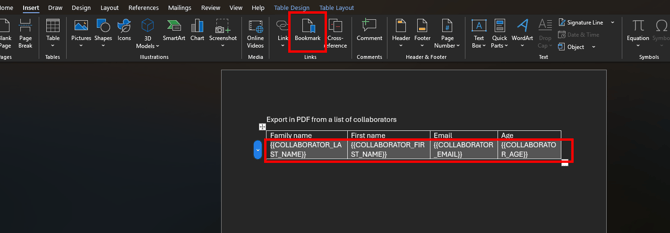
To create a new bookmark:
- From the top menu bar, click on the 'Bookmarks' icon (flag symbol).
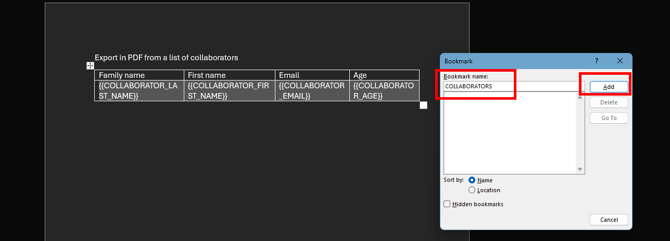
- Enter the desired data type for export (e.g., COLLABORATORS, ENROLMENTS, PROJECTS, TEAM_SHIFTS). Remember to use plural and all capital letters.
- Click 'Add' to create your bookmark.
- Save your export template.
- Upload the saved export template to Beeple.
- Now upload your template as explained in “How to consult export templates” (LINK)