.png?width=200&height=82&name=Beeple_Logo_Blue%20(1).png)
Projects:
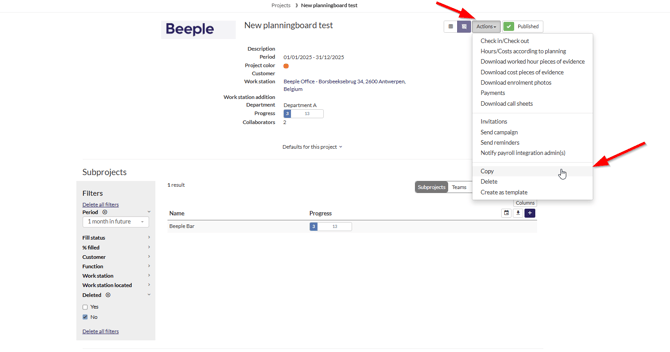
- Choose the project you wish to copy.
- Click Actions.
- Select Copy.
4. Choose the desired start date, which is typically January 1st of the new year (e.g., 01/01/20XX).
- Decide whether to include existing enrolments in the copy. In most situations, you should select "No."
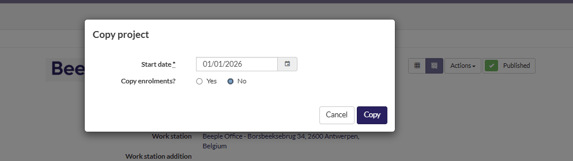
Finally, rename the project, for example, to "PROJECT NAME 2026." This ensures clear visibility and differentiation between projects from different years.
Sub-projects
To copy a subproject, head to the specified subproject you would like to copy.
Select “Actions”
Select “Copy”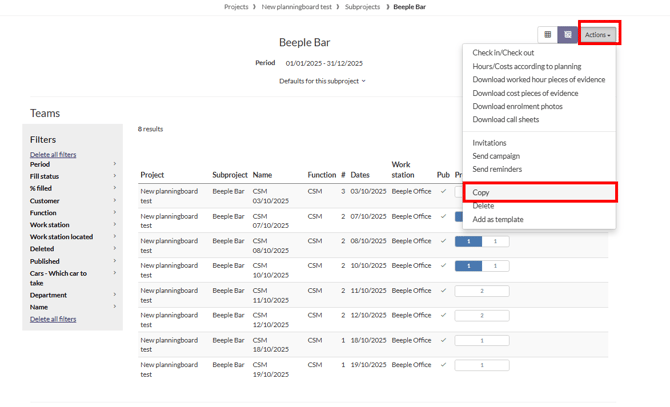
Then, choose the project where you want to duplicate this subproject. Specify the desired start date for the copied subproject. Finally, indicate whether you wish to include all existing enrolments in the copy.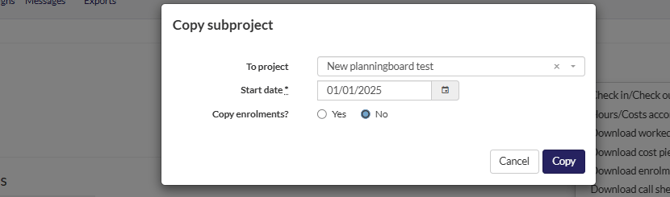
Teams
To begin, select the three dots next to the team name, then choose "Copy."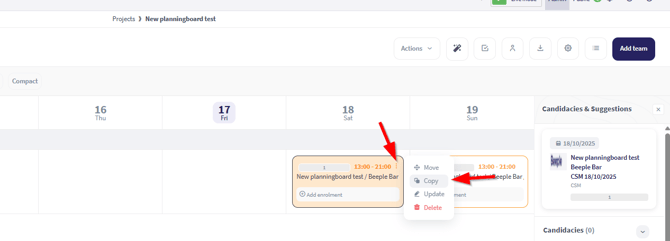
Team copy options
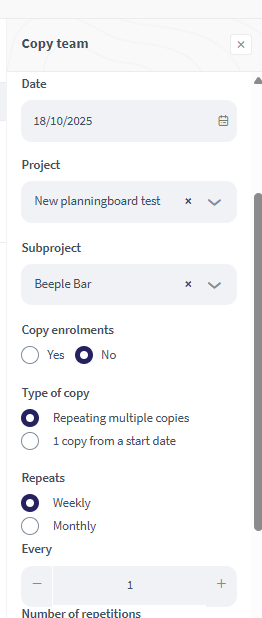
When copying a team, there are several options:
- Date: The starting date from which the copy will begin.
- Project: The destination project for the copied team. By default, this is the project where the original team is located.
- Subproject: Behaves identically to the "Project" setting.
- Copy enrolments: Choose whether to include existing team enrolments in the copy.
- Type of copy: Decide if you want a single copy on the specified "Date" or multiple repeating copies.
Repeating multiple copies<
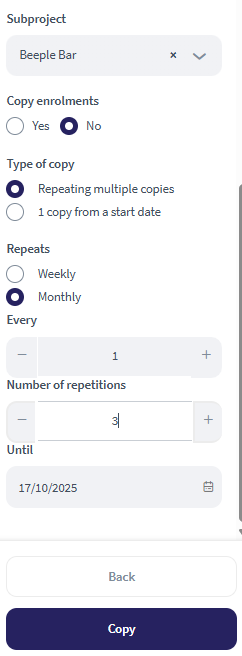
If you select "Repeating multiple copies," additional settings become available:
- Repeats: Specify the repetition period (weekly or monthly). (*More options below)
- Every: Define the frequency of repetition (e.g., every 1 week, every 5 weeks, every 1 month, every 10 months).
- Number of repetitions: The total number of copies to create within the chosen period.
- Until: The end date for the repetitions.
Example:
If you set "Multiple copies from 01/01/2026," to repeat "Every week 1x until 31/01/2026," this will result in 5 copies for that month. Since January 1, 2026 is a Thursday, and there are five Thursdays in that month, there will be one copy created each Thursday until January 31, 2026, totaling in 5 repetitions.
We offer the following repetition rules and what they do:
-Daily → Everyday until the period you selected
-Weekly → Weekly on specific days
-Monthly → Every x months with an x amount of repetitions until the specified date
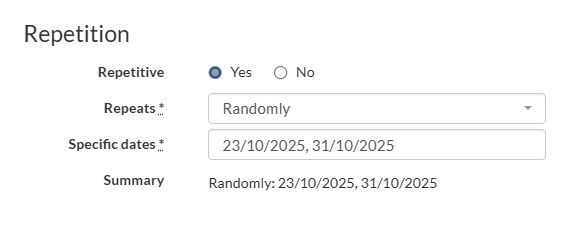
-Random → Specific dates you have selected (as shown below)