.png?width=200&height=82&name=Beeple_Logo_Blue%20(1).png)
Note: 'Evaluation questions properties' are only active when evaluation questions are enabled and the administrator evaluates collaborators per enrolment.
Example:
Imagine you have one evaluation question property: "In which type of shop is this question applicable?" with two choices: "multibrand retailer" or "single brand retailer." When a user creates a questionnaire for a multibrand retailer, they can easily filter and select all questions linked to that shop type by using the evaluation questions property.
Important: Once an evaluation question property is created we cannot delete this.
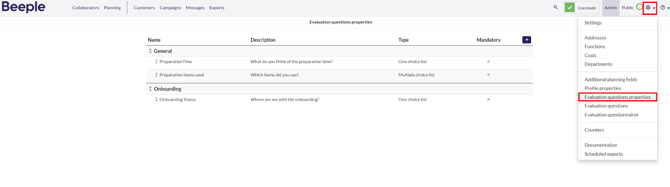
To access the Evaluation Questions Properties, navigate to the menu bar at the top of the screen and click on the gearwheel icon. From the dropdown menu, select "Evaluation questions properties." This will display an overview of all evaluation question properties and groups currently configured in the tool.
2. How to Reorder Evaluation Question Properties Within a Group
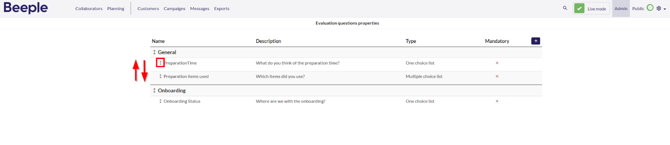
To change the order of evaluation question properties within a single group, simply hover over the double arrow next to the desired property. A mouse hand icon will appear, allowing you to drag and drop the property to its new location within the group.
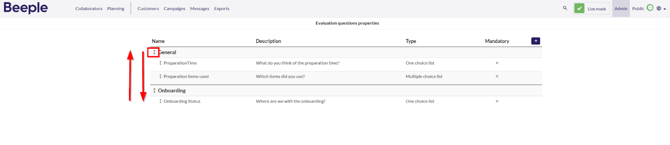
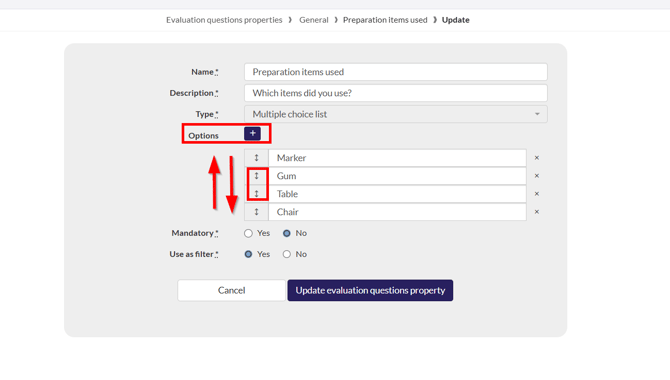
Similar to the method described above, use the arrows to move them up or down the list.
4. How to reorder the order of the options of an evaluation questions property?
To manage options:
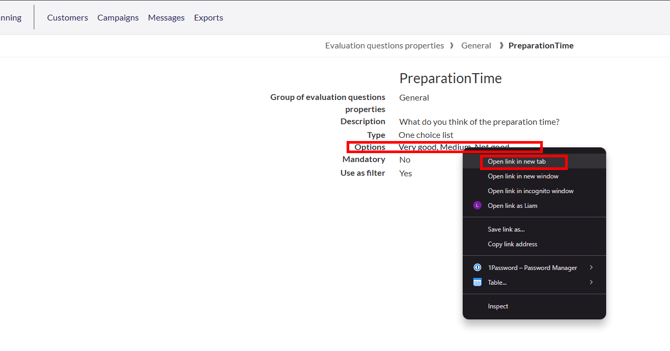
- Right-click an option and select "Open link in new tab."
- You can then add new options or reorder existing ones.
5. How to delete an evaluation question in the evaluation question properties
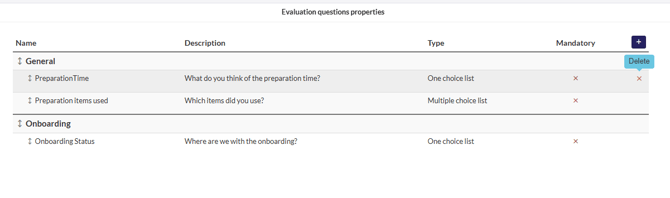
Hover over the relevant question you want to delete and select the delete option.