.png?width=250&height=103&name=Beeple_Logo_Blue%20(1).png)
- Enable Volunteer Invitations:
- Navigate to 'Register collaborators' in the left sidebar.
- Set 'Volunteers can invite friends' to 'Yes'.
- Click 'Update settings' to save.
- Create the Message Template:
- Scroll down to 'Message templates'.
- Hover over 'Invite a Friend' and click the plus sign.
- Select 'Email' as the 'Message type'.
- Choose the template language.
- (Optional) Enter a sender and subject.
- Compose Your Message:
- Include {{INVITE\_MESSAGE\_HTML}} to display the collaborator's custom message.
- Insert the Acceptance Link:
- Type the word or phrase for the invitation acceptance link.
- Select the text.
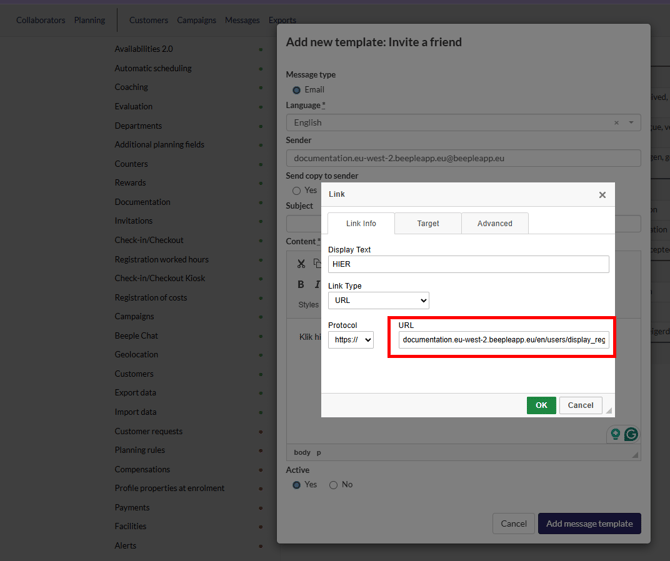
- Click the chain icon in the menu bar.
- Enter your Beeple website's URL.
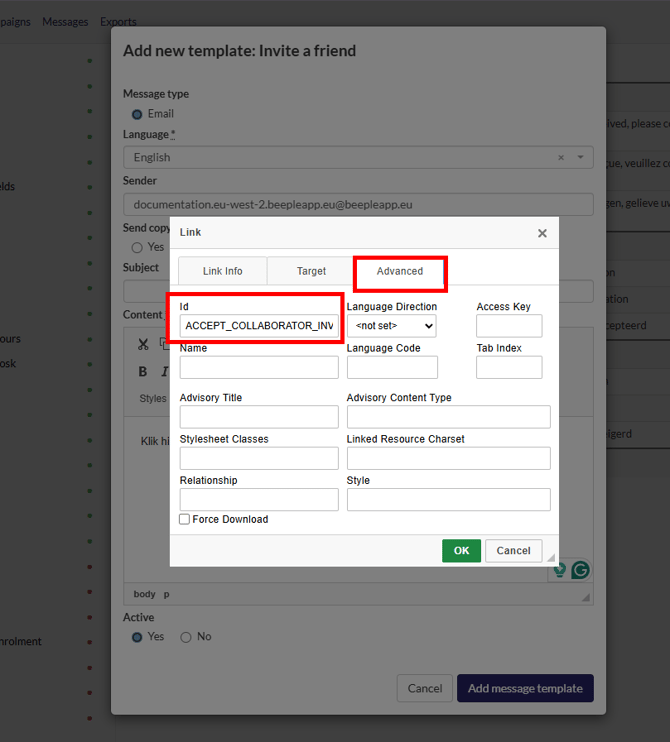
- Go to the 'Advanced' tab.
- Enter ACCEPT\_COLLABORATOR\_INVITATION\_LINK in the 'Id' field.
- Click 'OK'.
- Finalize:
- Click 'Create message template' to save.
On the web app
Once they log in on the web, they can select “Jobs” and a button appears stating “invite friends”.
This same button is also visible on the “My work” page.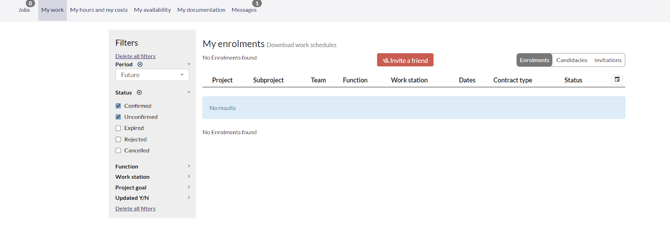
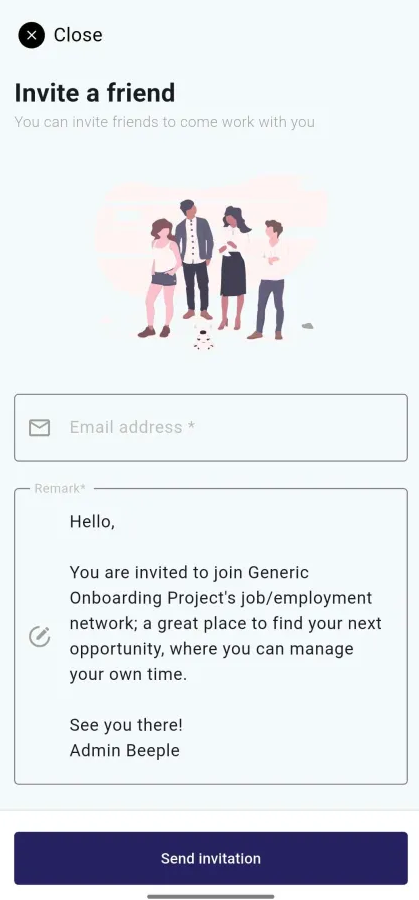
When they click this button, they have 2 fields to adjust:
-Email address of the receiver
-Text field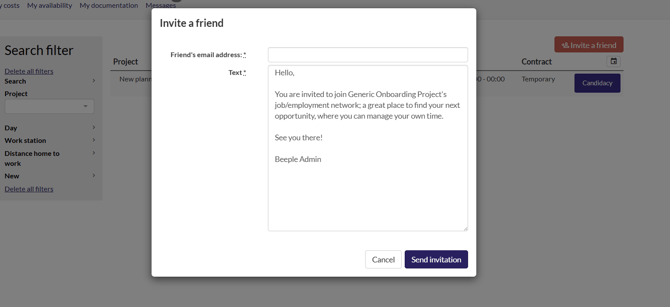
If all is entered, they can select “Send invitation” and the friend will be informed by email.
On the mobile app
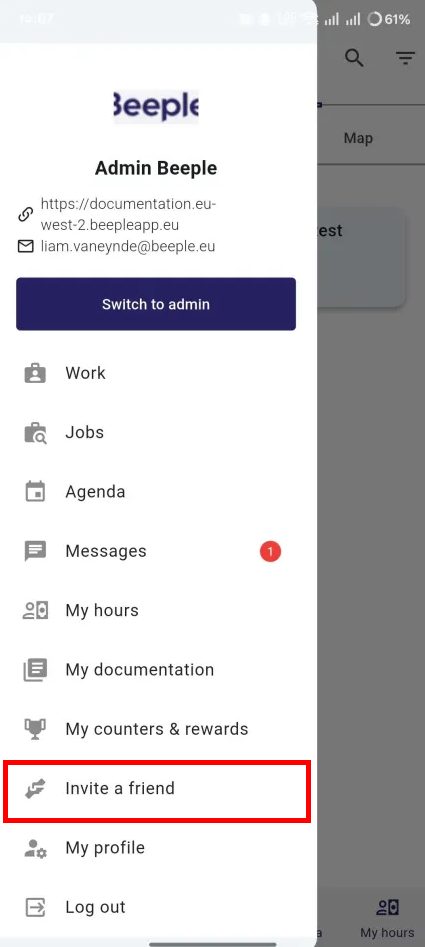
In the top left select the 3 horizontal lines (hamburger menu)
Here they can find “Invite a friend”, the same steps as above apply: