.png?width=250&height=103&name=Beeple_Logo_Blue%20(1).png)
In addition to Excel and Word (PDF) templates, Beeple also supports the upload of XML templates. These XML files are structured using tags. Below is an example demonstrating the typical structure of an XML template: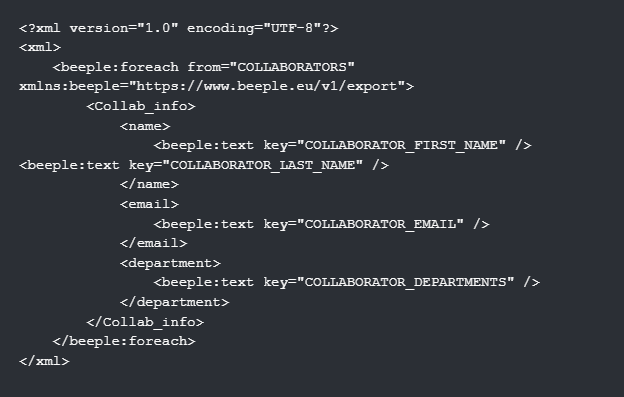
Here's a breakdown of common XML export elements in Beeple:
- XML Declaration: <?xml version="1.0" encoding="UTF-8"?> specifies the XML version.
- File Delimiters:
- <xml> marks the beginning of the file.
- </xml> marks the end of the file.
- Data Export Loop: <beeple:foreach xmlns:beeple="[https://www.beeple.eu/v1/export](https://www.beeple.eu/v1/export)" from="COLLABORATORS"> initiates an export loop. The from attribute determines the data group to be exported (e.g., COLLABORATORS, TEAM, PAYMENTS).
- Data Grouping: <Person> </Person> serves to group the data for an individual entry (e.g., a collaborator). Note that Person is a custom tag and can be replaced.
- Data Fields: <id> </id> represents a data field. This tag can also be customized.
- Beeple Data Tag: <beeple:text key="COLLABORATOR_BEEPLE_CODE" /> retrieves specific data from Beeple. The key attribute specifies the desired data tag (e.g., COLLABORATOR_BEEPLE_CODE for the Beeple ID).
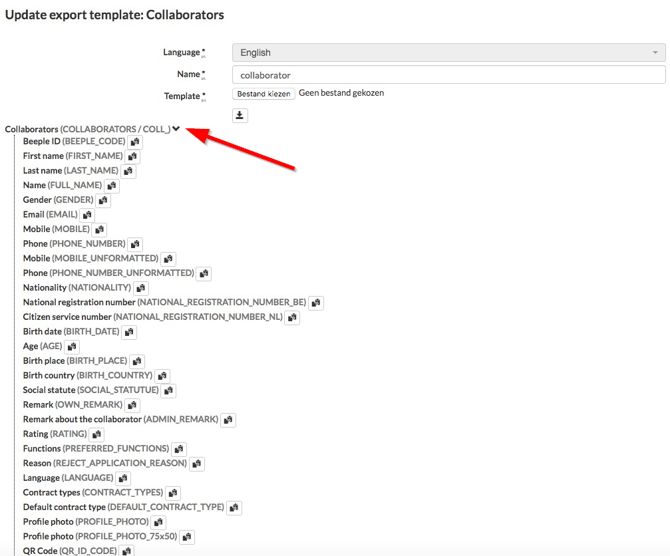
Finding Available Tags:
When uploading your XML template, you can access a tree structure containing all available tags by clicking the small arrow. These tags can be easily copied to your clipboard using the adjacent button.