.png?width=200&height=82&name=Beeple_Logo_Blue%20(1).png)
Key Terms:
- Work Environment (Tenant): The specific Beeple URL you log into.
- Single Sign-On (SSO): Enables easy switching between multiple accounts without repeated logins.
- Main Environment (Main Tenant / My Linked Groups): The primary Beeple URL within a linked group.
- Subenvironment (Subtenant / Member Tenant / My Linked Members): A Beeple URL subordinate to the main environment. A subenvironment can be part of multiple groups.
- Group of Environments: Comprises one main tenant and at least one subtenant. Subenvironments within the same group do not need individual links if they are linked to the same main environment.
Benefits of Linked Work Environments:
This feature significantly enhances user experience when working with multiple Beeple environments by enabling you to:
- Create and modify your own groups of linked work environments.
- Manage collaborators across all linked environments.
- Synchronize collaborator data within the linked environments.
- Utilize Single Sign-On for users across linked environments.
- Easily switch between different environments.
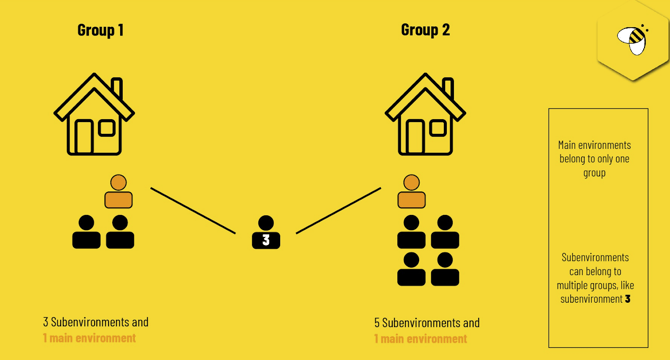
Setup: Creating a Group of Environments
Step 1: Enable Linked Work Environments
- Navigate to 'Settings'.
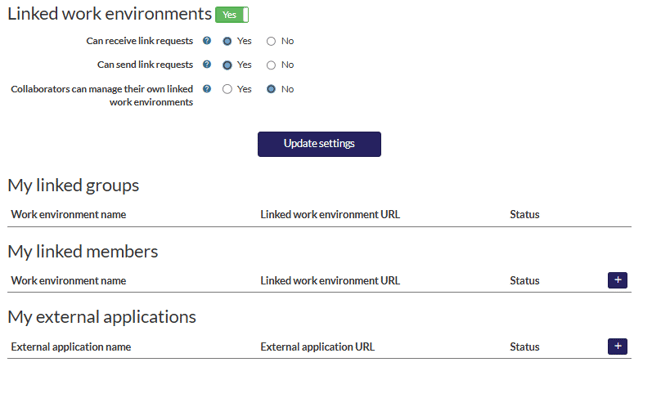
- Enable the 'Linked work environments' module.
You will then see 3 options:
- Receive link requests: This option allows the environment to accept link requests from other environments.
- Send link request: Use this option to send a link request from the current environment to another.
- Collaborators can manage linked work environments: Collaborators have the option to manage their linked work environments.
From your primary environment (the one you wish to be the main environment for the group), select the '+' icon located in 'My linked members'.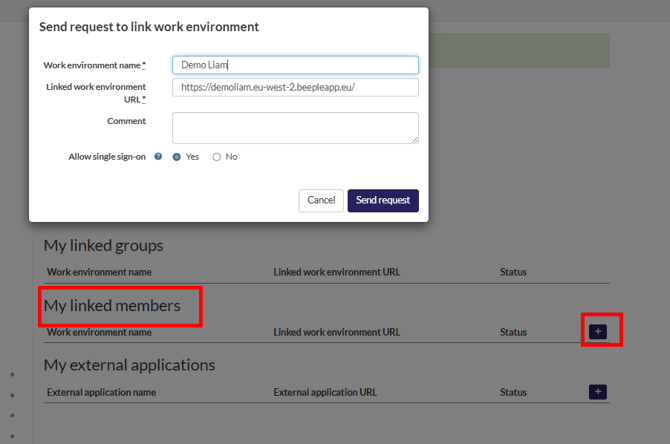
Allow Single Sign-On (SSO)
Selecting 'Yes' for SSO enables users to log in to your environment from another linked environment without needing to log off. This setting must be configured for each linked work environment.
Request Two-Factor Authentication (2FA)
If you select 'Yes' for 2FA, users will be required to enter a 2FA code when switching between linked work environments.
Important Note on 2FA Visibility:
This 2FA setting is only visible if you have enabled single sign-on and if two-factor authentication is globally enabled in your system settings.
Scope of SSO and 2FA:
Both SSO and 2FA settings apply to collaborators who are logging into your environment from a linked one.
Accepting a Link Request
Once your request to link environments has been sent to your subenvironment, follow these steps to accept it:
- Navigate to the subenvironment (e.g., bbinternal2).
- Go to Settings.
- Select Linked work environments.
- Accept the link request from this section.
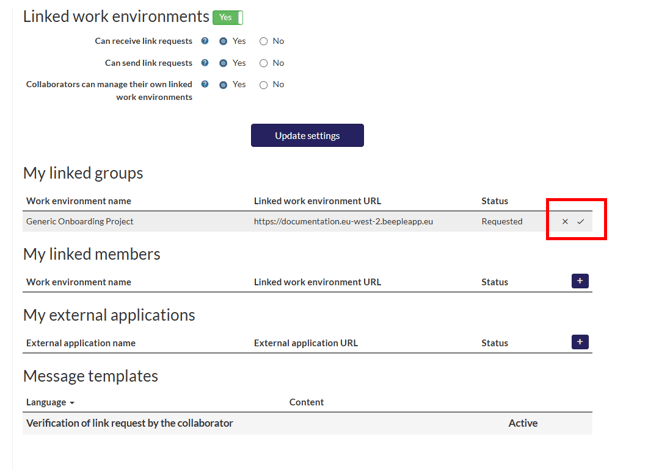
After selecting 'Accept link,' a connection will be established between the two environments, and the 'Accept link' screen will appear, allowing you to configure SSO settings. Additionally, a message will be displayed on your dashboard if you possess the necessary access rights to 'Linked work environments.'
Step 3
This process can be repeated to add multiple environments to the same group. Always initiate the process from the main environment to add sub-environments.
Manage Collaborators Across a Group of Work Environments
To link collaborator accounts across multiple environments, first establish at least one link to the group of environments. Once this is done, you can link the same collaborator's accounts between these linked environments.
An administrator must configure the necessary settings. Navigate to any collaborator's profile page and locate the "Linked work environments" option.
Select the ‘+’ icon and add an environment to which you want to push this collaborator.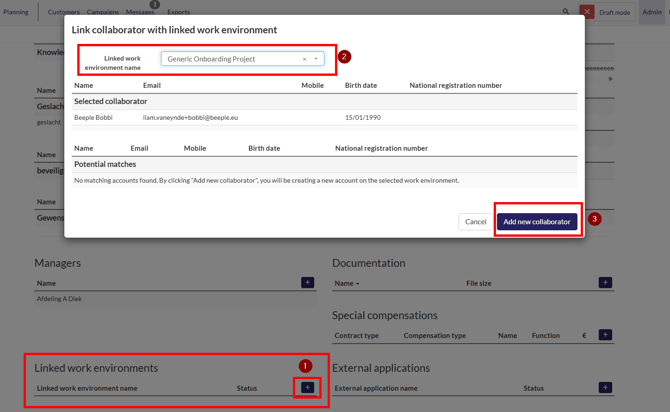
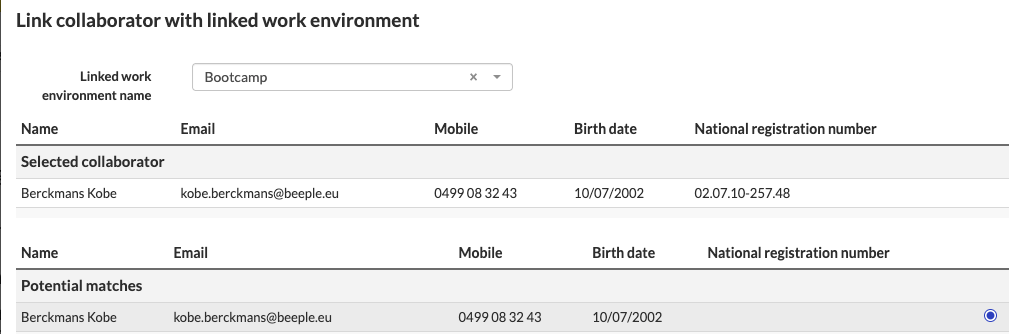
Beeple can automatically identify potential accounts linked to the same collaborator. You will only see environments directly connected to your own environment in the dropdown list. To link an account, select it and confirm by clicking the ‘Link existing collaborator’ button.
If no potential matches are found, you will have the option to automatically create the collaborator in the linked environment. This action will create a new account for the collaborator, including all their personal data. This option is only available if the email address has not yet been used in the other tenant; otherwise, it would appear as a potential match.
How to switch between environments as a user
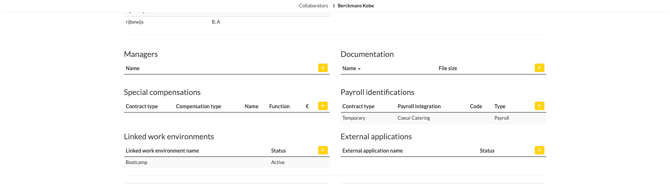
Step 1 — Link the collaborator to the other environment Go to the collaborator's profile and scroll down to "Linked work environments". Click the + icon to add a linked environment. Select the correct environment from the dropdown and choose the matching profile under "Potential matches".

Step 2 — Accept the link request in the other environment Navigate to the collaborator's profile in the linked environment (e.g. Bootcamp). A notification will appear at the top stating that a link request has been made. Click "Accept link request". Once accepted, an authorisation code is generated

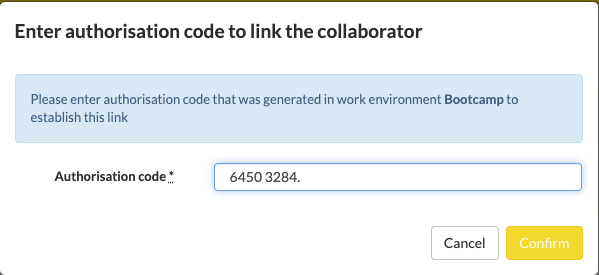
Step 3 — Enter the authorisation code Go back to the original environment and open the collaborator's profile. A banner will appear stating that the link is not yet established. Click "Enter authorisation code" and enter the code that was generated in the other environment. Click "Confirm".
Step 4 — Switch between environments Once the link is active, the collaborator can switch between environments by clicking the grid icon in the top right corner. A dropdown will appear showing all linked environments (e.g. Kobe-Demo, Bootcamp). Simply click the desired environment to switch.
