.png?width=200&height=82&name=Beeple_Logo_Blue%20(1).png)
- Open an Excel file on your computer.
- Get the relevant code dictionary:
For this example, use the "Collaborators" dictionary, where all export codes and their descriptions are listed. - Set up your Excel file with descriptions and codes:
- In the first row, enter the descriptions you want to give each column.
For example:- Cell A1: First name
- Cell B1: Last name
- In the second row, enter the corresponding export codes from the dictionary, including the double curly brackets.
For example:- Cell A1: {{COLLABORATOR_FIRST_NAME}}
- Cell B1: {{COLLABORATOR_LAST_NAME}}
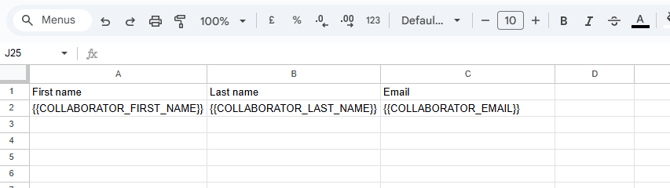
- In the first row, enter the descriptions you want to give each column.
- Save your Excel file.
- Upload your export template file to Beeple: (HYPERLINK TO Consulting Export Templates)
- Log in to Beeple and go to Settings
- Navigate to Export data
- Select the relevant export header (for this example, Collaborators header)
- Choose Excel as the export type
- Click on the "+" (Add new template) button
- Fill in the required details:
- Language
- Name for your export template
- Upload/select your Excel file
- Click Add export template
- You have now successfully uploaded your export template!
Important notes:
- This principle applies to all types of exports in Beeple.
- Always ensure you upload the template under the correct export header to match the type of data you want to export. (PDF, EXCEL, XML)
- Codes must be in Capital letters at all times.
- Codes must open and end with 2 curly brackets.
- To separate 2 items, only _ can be used as seen in the above example.
- Once an export template has been uploaded it can only be removed as long as the export template hasn’t been used to create an export.