.png?width=200&height=82&name=Beeple_Logo_Blue%20(1).png)
Setting up your work schedule with Unavailability and Unplanned Hours.
Since the September 2018 release, the work schedule functionality has been expanded
to include not only confirmed enrolments, but also unavailable and unplanned hours. You can request a default template from the customer success team.
Important Note: To include hours without planning in your work schedule, they must be marked as absence.
To add unavailabilities and/or unplanned hours to your template, follow these steps:
Part 1: Configure the Work Schedule Settings
- Click the gearwheel icon in the upper right corner.
- Go to 'Settings'.
- Click 'Work schedules' in the left sidebar.
- Next to 'Work schedule data', select the data you wish to display in the work schedule.
- Click 'Update settings' to save your choices.
Part 2: Create Custom Keys
- Return to the 'Work schedules' settings (as described above).
- Scroll down to 'Settings work schedules data'.
- Click the plus sign on the right to add a new 'Key'.
- Enter a clear, descriptive collective name (e.g., 'Date' or 'Day').
- Enter the dictionary code (from the Enrolments, Unavailability & Unplanned hours dictionary) that corresponds to the data you want to display for enrolments and/or unavailabilities. For instance, use {{TEAM_FIRST_SHIFT_START_DATE}} for the date of a confirmed enrolment.
- Click 'Create Custom dictionary key' when finished. Existing keys can always be updated. The system will automatically add WORK_SCHEDULE_EVENT to your key. The combination of these two ({{WORK_SCHEDULE_EVENT_DATE}} for example) is the code you will use in your template.
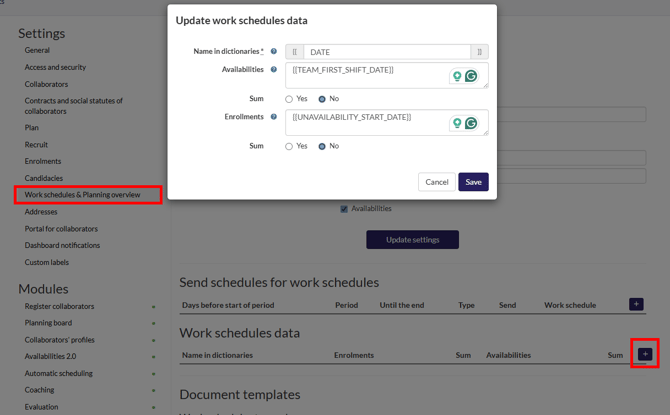
Tip for Combining Data: If you combine enrolments and unavailabilities in the work schedule, add a description to differentiate between them. For example, use TEAM_FULL_NAME for enrolments and UNAVAILABILITY_REASON for unavailabilities with the key 'Description'.
Part 3: Composing Your Template
When creating your work schedule template, follow these steps:
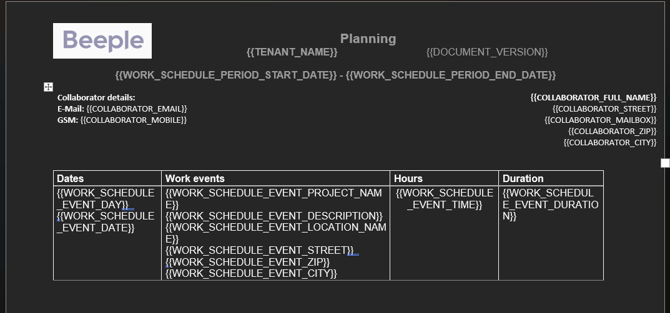
- Add Custom Dictionary Keys: Insert your custom dictionary keys (formatted as '{{WORK_SCHEDULE_EVENT_key}}') into the template.
- Bookmark the Work Schedule: Once the work schedule is complete, select the entire schedule and add the bookmark 'WORK_SCHEDULE_EVENTS'.
- Include Header Codes (If Needed): If required, add relevant codes to the header of your work schedule template. (LINK TO “Header work schedule (in export for poweruser”)
- Add Footer Sums (If Needed):
- To include the sum of all mentioned enrolments' {{TEAM_FIRST_SHIFT_DURATION}} + all mentioned enrolments' {{TRANSFER_TIME}} + all mentioned unplanned hours' {{APPROVED_DURATION}}, use the code: {{WORK_SCHEDULE_TOTAL_DURATION}}. Remember to select the appropriate data checkboxes in the work schedules data table (see below).
To include the sum of the duration of all shifts in the work schedule, use the code: {{ENROLMENTS_TOTAL_DURATION}}.
Examples:
Created in Beeple: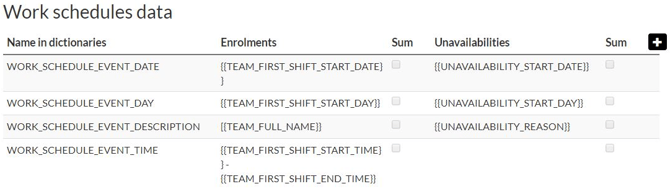
Created in Word: