.png?width=200&height=82&name=Beeple_Logo_Blue%20(1).png)
Examples of possible evaluation tags include:
- Friendly
- Accurate
- Careless
- Lazy
It's also possible to add evaluation tags per enrollment. In this scenario, tags are recorded after the collaborator has completed their shift.
Please note: Evaluation tags are always categorized into two groups: "Pluses" and "Minuses."
Important: Once an evaluation tag is created we can’t delete this anymore.
1. Locating Evaluation TagsTo manage Evaluation Tags, go to the "Evaluations" module. Ensure the "Evaluation tags" setting is set to "Predefined." 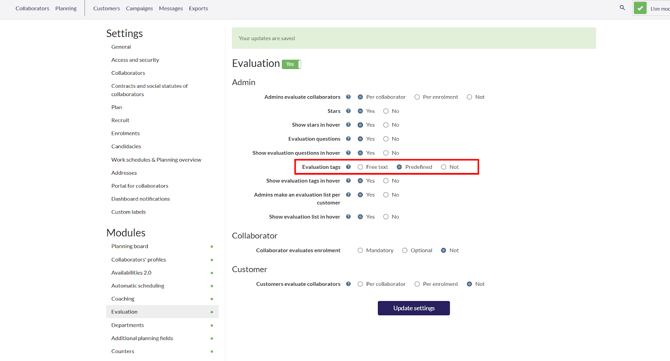
Then, click the gear icon and choose "Evaluation tags" to see all your evaluation tags and their associated groups.
2. How to add a new Evaluation Tags within a group
To add an evaluation tag:
- Hover over the '+' symbol to the right of each group (Plus & Minus).
- Click the '+' symbol.
- Complete all required fields.
Click "add evaluation tag."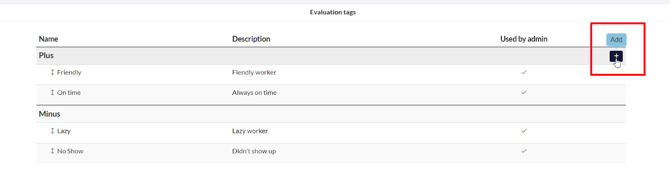
3. How to Reorder Evaluation Tags within a group
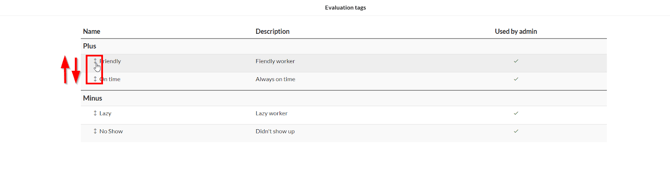
To change the order of evaluation tags within a single group, simply hover over the double arrow next to the desired tag. A mouse hand icon will appear, allowing you to drag and drop the tag to its new location within the group.