.png?width=200&height=82&name=Beeple_Logo_Blue%20(1).png)
Example:
Imagine you have one evaluation question property: "In which type of shop is this question applicable?" with two choices: "multibrand retailer" or "single brand retailer." When a user creates a questionnaire for a multibrand retailer, they can easily filter and select all questions linked to that shop type by using the evaluation questions property.
Important: Once created these questionnaires can’t be deleted.
What are Evaluation Questionnaires?
This method involves grouping related questions into a single list. This allows us to select a relevant list to send to collaborators, administrators, or clients with just one selection, rather than individually selecting each question for every shift.
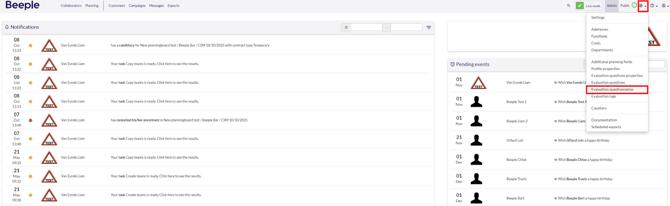
To access the Evaluation Questionnaires, navigate to the menu bar at the top of the screen and click on the gearwheel icon. From the dropdown menu, select "Evaluation Questionnaires" This will display an overview of all evaluation Questionnaires configured in the tool.
2. How to create Evaluation Questionnaires
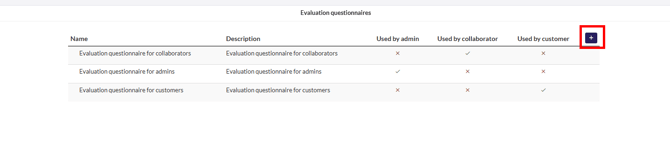
Select the “+” Icon
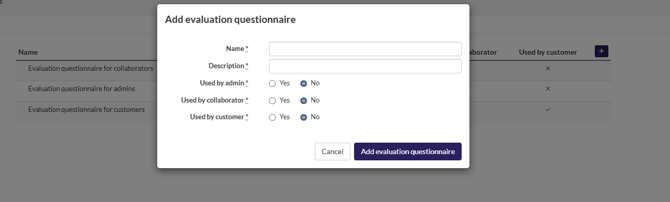
Next, complete the required fields and specify who is responsible for answering the questions.
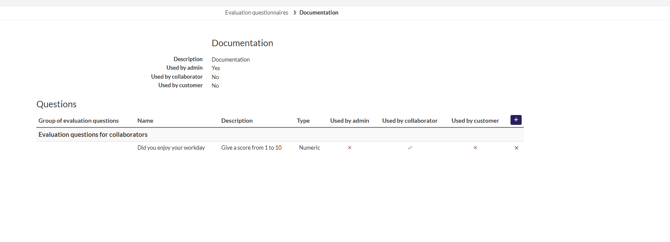
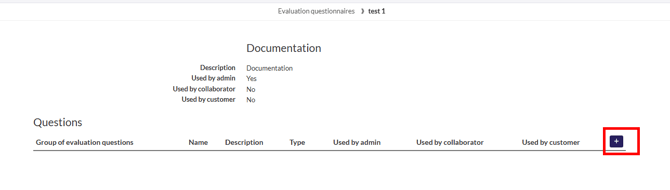
With an overview in place, we can now begin adding questions using the "+" icon.
Relevant questions are chosen and then added.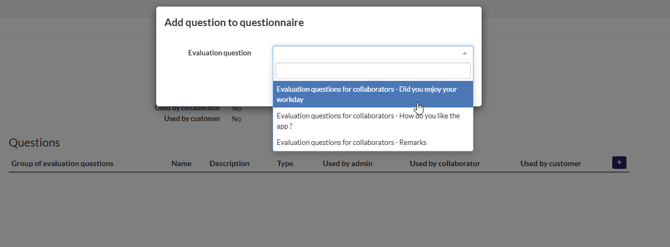
The question has now been successfully added to this questionnaire.