.png?width=200&height=82&name=Beeple_Logo_Blue%20(1).png)
Understanding and Utilizing Beeple Modules: Counters and Rewards
Beeple offers two interconnected modules, 'Counters' and 'Rewards,' designed to enhance collaborator engagement and recognition.
Counters Module:
When activated, the 'Counters' module allows you to track key metrics for each collaborator:
Examples:
- Work Frequency: This metric calculates how often a collaborator has worked, provided the 'registration of worked hours' module is also active.
- Holidays: This tracks the number of holidays a collaborator has taken.
Even for activities not directly managed within Beeple, manual entries can be added to a collaborator's counter.
Rewards Module:
The 'Rewards' module, which can only be activated when the 'Counters' module is turned on, enables you to establish targets for collaborators to achieve in exchange for rewards. For instance, you could offer an amusement park ticket to a collaborator once their counter reaches 100 points.
Transparency and Access:
- Collaborators can independently view their own counter progress (though they cannot modify it).
- Admins have the ability to consult the historical data for both the 'Counters' and 'Rewards' modules for each collaborator.
How to set the Counters & Rewards module up
- Click the gearwheel icon.
- Select "Settings."
- In the left-hand menu, under "Modules," locate "Counters & Rewards."
- Ensure both modules are activated, activating "Counters" first.
Once done, go back to the gearwheel and you’ll find “Counters” here.
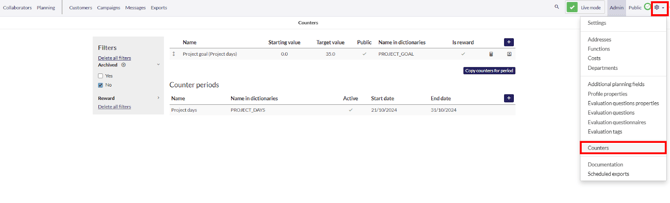
On this page, select the "+" icon next to "Counter periods."
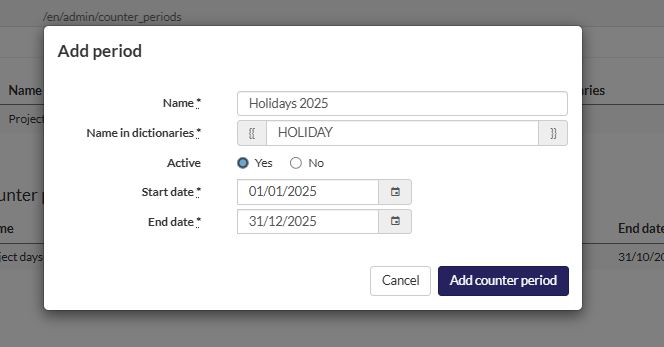
Fill in the following fields:
- Name
- Name in dictionaries: Used for later export.
- Active: Yes or No
- Start date
- End date
- Select “Add counter period”
To add a new counter, click the "+" icon at the top.
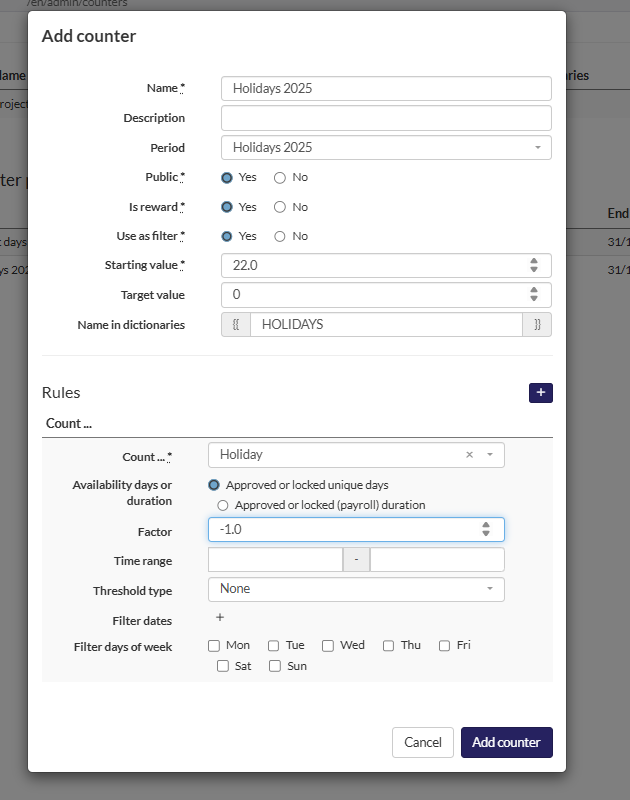
Next, populate all the required fields. For example, if your colleagues are allotted 22 holidays annually, and you want to deduct one each time a holiday is taken, you would set up the counter as follows:
- Name: Enter the counter's name.
- Period: Select the period you just created.
- Public: Choose whether the worker can view this counter.
- Is Reward: Indicate if a reward is given when the target is reached.
- Use as filter: Determine if you want to filter based on this value.
- Starting value: This can be any number (e.g., starting at 22 and counting down, or 0 and counting up).
- Target value: The value that must be reached to trigger a reward.
- Name in dictionaries: The name to be used in export templates.
Rules: Here, you define how and what to count:
- Count: Select the item you wish to count.
- Factor: Specify by what factor it should be added to or removed from the starting point.
- Time range: Indicate if there's a specific time range for the counter.
- Threshold type: Choose if it should count daily, weekly, monthly, or always (none).
- Filter dates: Decide if you want to filter any specific dates.
Filter days of week: Determine if you want to filter any specific days of the week.