.png?width=200&height=82&name=Beeple_Logo_Blue%20(1).png)
How to set it up:
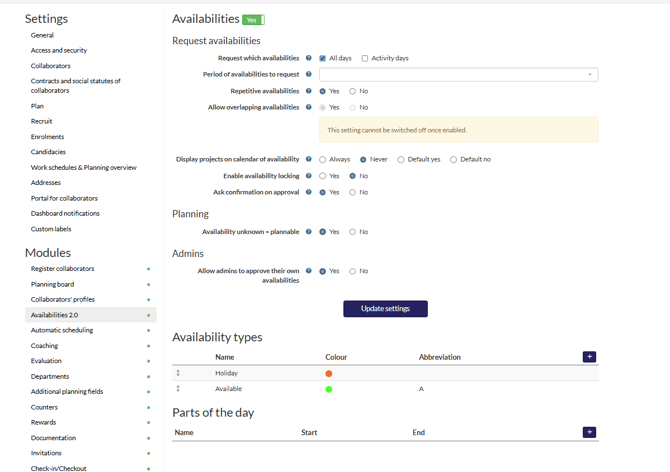
To activate Availabilities 2.0, follow these steps:
- Navigate to the gearwheel icon.
- Select "Settings."
- Ensure that "Availabilities 2.0" is active.
For all settings located above "Availability types," please consult with your Customer Success Manager (CSM) for guidance.
Instructions on how to create new Availability types will be provided below.
- Select the "+" Icon
- General Settings:
- Enter a name.
- Choose a color.
- Specify how workers should enter this information: "Free parts of the day," "Whole days," or "Determined by parts of the day."
- Select the relevant settings for your type of (un)availability.
- Admin Settings (Optional):
- Choose which items administrators and managers can create, update, or delete.
- Collaborator Settings:
- Select which items collaborators are allowed to create, update, or delete.
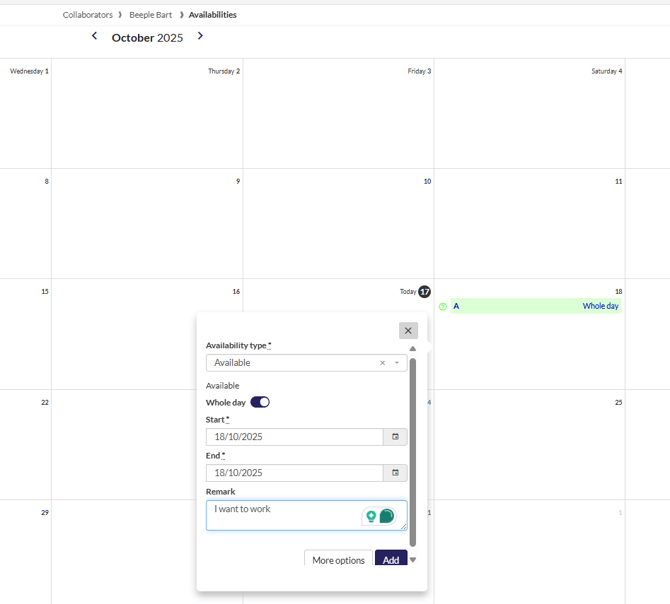
If you selected “Determined by parts of the day” then go to “Parts of the day” at the bottom of the Availability page.
Click the “+” icon, select the name + start + end time and click save.