.png?width=200&height=82&name=Beeple_Logo_Blue%20(1).png)
Data Evaluation Logic & Prioritisation
The automation algorithm functions by directly comparing actual recorded time metrics against the originally scheduled shift times. To determine actual recorded times, the system searches data sources according to a strict hierarchy:
- Hour Registration of the Collaborator: If the collaborator has explicitly submitted or modified their worked hours, this manual or app-submitted log is prioritised first.
- Check-in / Check-out Data: If no explicit collaborator hour registration exists, the system relies on physical or digital hardware timestamps generated via check-in and check-out events.
This resolved actual time is then cross-referenced against the planned shift schedule under the parameters configured in your module settings.
Configuration & Setup
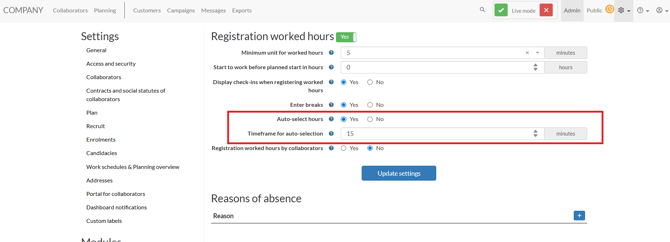
To activate and tailor this feature to your business rules, navigate to the ‘Registration worked hours’ module settings. Three core configurations control the auto-selection workflow:
| Setting Name | Type | Functional Description |
| Auto-select hours | Toggle (On/Off) | Enables or disables the background auto-selection evaluation algorithm entirely on the verification screen. |
| Timeframe for auto-selection | Minutes (Integer) | Defines the maximum acceptable variance allowed between planned and actual timestamps for both the shift start time and end time independently. |
| Minimum unit for worked hours | Time Increment | Specifies the rounding intervals (e.g., 5 min, 15 min) applied to actual times when copying data into the 'Other' fields during a variance fallback event. |
Auto-Selection Scenarios & UI Indicators
When processing rows on the confirmation screen, the system automatically assigns one of two statuses depending on whether the variance falls within your defined Timeframe for auto-selection:
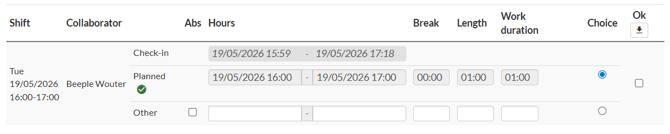
🟢 Scenario A: Within Planned Range
- Condition: Both the actual start time and actual end time fall strictly within or match the acceptable minute variance defined in the timeframe settings.
- System Action: The row is automatically pre-selected as 'Planned hours'.
- Visual Indicator: Green check mark icon displaying the tooltip status 'Within planned range'.
🔴 Scenario B: Outside Planned Range
- Condition: Either the recorded start time or end time deviates beyond the allowed timeframe configuration, indicating a shift discrepancy.
- System Action: The row option defaults automatically to 'Other'. The system automatically copies and rounds the actual start time, end time, and related break durations into the editable 'Other' input fields according to your 'Minimum unit for worked hours' parameters.
- Visual Indicator: Red exclamation mark icon displaying the tooltip status 'Not within planned range'.

Tolerance Evaluation Examples
Example Scenario: Shift planned from 09:00 to 17:00 with an allocated 30-minute tolerance window.
| Actual Start | Actual End | Start Assessment | End Assessment | Resulting Selection |
| 08:45 | 17:10 | 15 min early (Within Range) | 10 min late (Within Range) |
✅ Planned
|
| 09:16 | 16:44 | 16 min late (Within Range) | 16 min early (Within Range) |
✅ Planned
|
| 08:30 | 17:30 | 30 min early (On Boundary) | 30 min late (On Boundary) |
✅ Planned
|
| 09:31 | 17:05 | 31 min late (Outside Range) | 5 min late (Within Range) |
⚠️ Other (Pre-filled & Rounded) |
| 09:00 | 16:29 | On time (Within Range) | 31 min early (Outside Range) |
⚠️ Other (Pre-filled & Rounded) |
Streamlined Filtering
To facilitate fast batch management, a new filter titled 'Within planned range' has been added directly to the worked hours screen matrix. This filter enables you to segment your view instantly:
- Filter by rows marked Within planned range to quickly audit and bulk-approve standard shifts.
- Filter by rows marked Not within planned range to quickly isolate, investigate, and correct shifts with significant timing discrepancies.
⚠️ Important Operational Note
Auto-selection acts strictly as an administrative layout pre-fill framework. The system will not commit or save these hours automatically. Admins must review the suggestions and explicitly execute a save operation by clicking either the individual row "Save" button or the global "Save all" control to finalise payroll entries. You retain full capability to manually override any auto-selected choice or rounded field prior to clicking save.
An accompanying video tutorial detailing configuration paths and live screen demonstrations is attached directly below. Refer to the media attachment to watch the visual configuration sequence step-by-step.