.png?width=250&height=103&name=Beeple_Logo_Blue%20(1).png)
There are four primary levels and two additional levels.
Primary Levels:
- Project
- Subproject
- Teams
- Shifts
Additional Levels (Level 5):
- Enrolments
- Candidacies
Project level
To create a new project, navigate to the "Planning" section, then select "Projects," and finally, click the "+" icon.
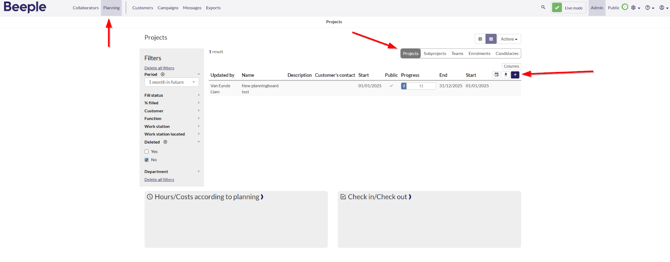
Fill in all mandatory fields marked with an asterisk and click on “Add project”.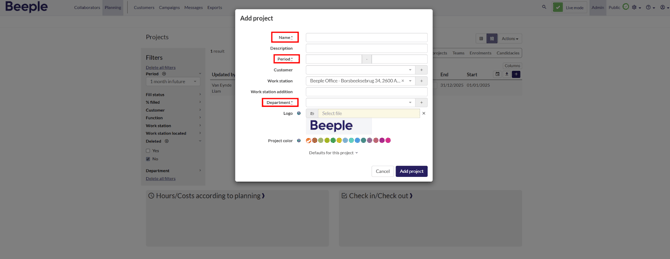
Note: The fields in the screenshot may be different from what you may be required to fill in.
Subproject level
From the project level, select "Actions" and then search for "Add subproject."
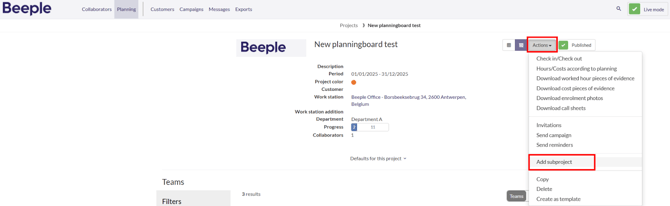
Input the subproject's name, along with its start and end date.
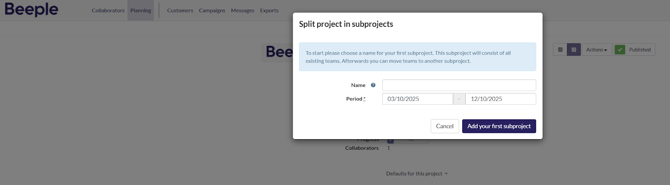
We have now created our first subproject within this project.
From now on you can also use the “+” icon to create new subprojects.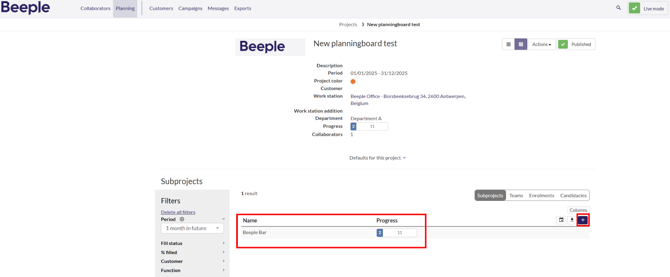
Team level
Click on the subproject. You are now in the section where one can add teams. Add a team by clicking the “+” icon: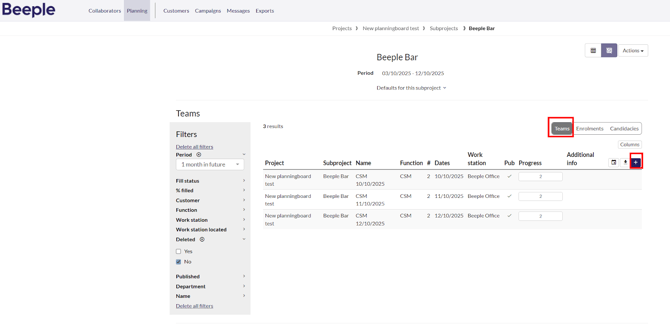
Fill in all mandatory fields.
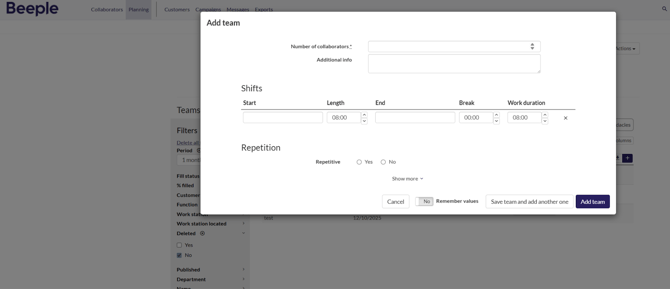
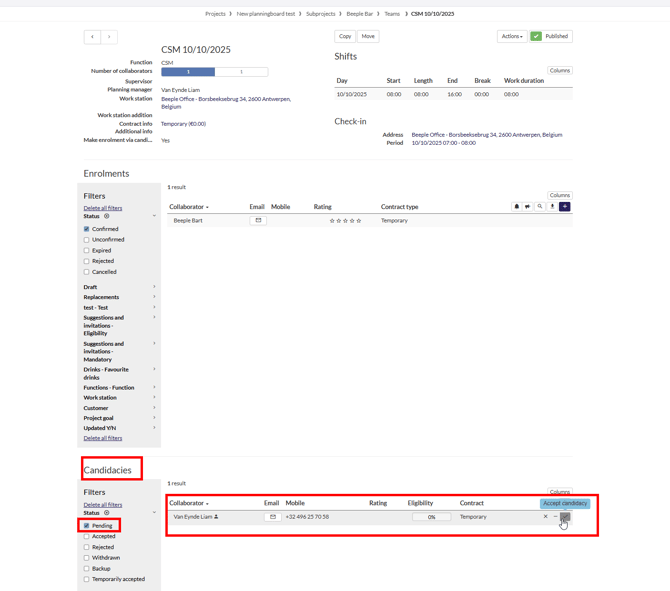
Once details are added, the team page will appear: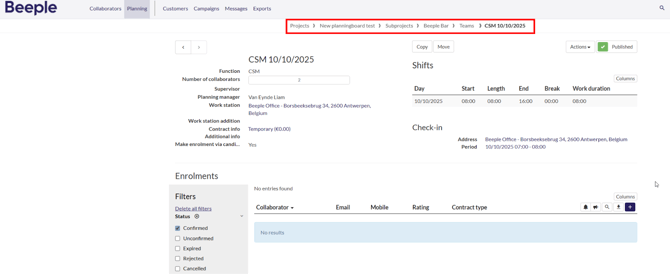
Note: To determine your current working level, look for the red marking at the top of the screenshot above. It displays your location as: Project → Project name → Subproject → Subproject name → Team → Team name.
This clear path ensures you can always identify the specific project, subproject, or team you are currently working within.
Shift level
A shift is integral to a team's structure; a team cannot be established without one. When creating a team, the start date, end date, start time, end time, and break duration are all required and mandatory fields.
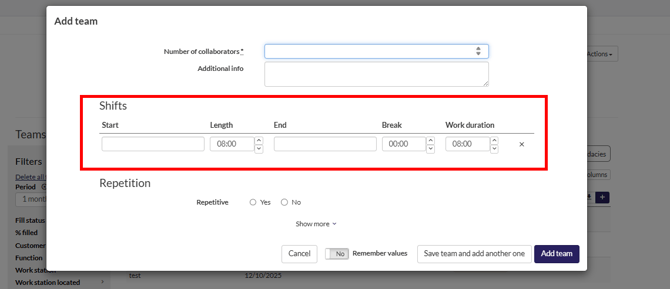
After a team has been created, shifts can be edited on the team page by clicking on a date or time field.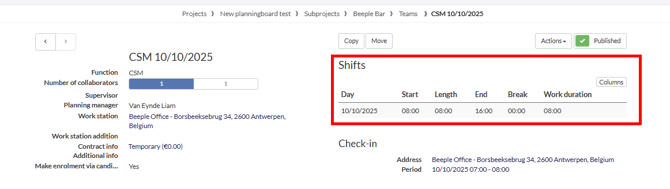
Enrolments and candidacies
Admin/Planner initiates an enrolment
This section outlines the process for an administrator or planner to manually add an enrolment.
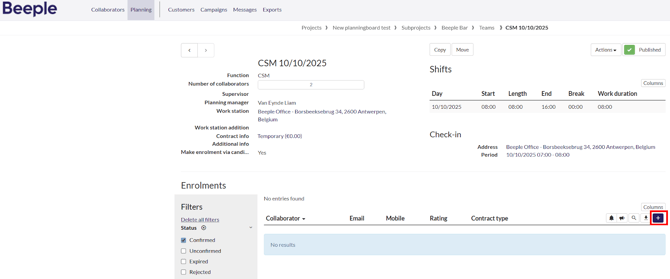
Viewing existing enrolments:
Any existing enrolments for a collaborator will be displayed in the "Enrolments" section.
Enrolling a collaborator:
To enrol a collaborator, search for the collaborator’s name, click on the name and select "Make enrolments”.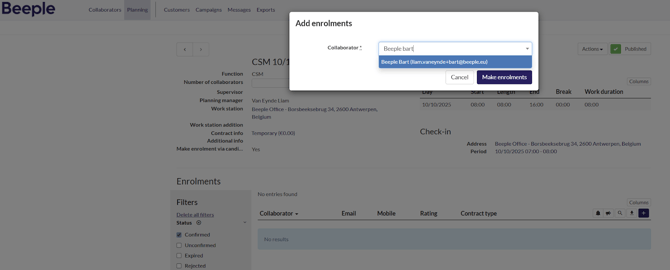
A collaborator has now been successfully enrolled.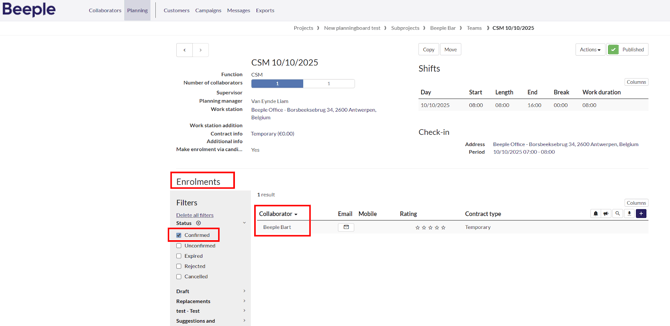
Candidacies
Scroll down the page to view the Candidacies section, where collaborators who have applied for a shift are listed. Hovering over a candidacy reveals options to reject, place on standby, or accept the candidacy. Upon acceptance, the candidacy transforms into an enrolment, and the collaborator will then be listed under the “Enrolments” section.