.png?width=250&height=103&name=Beeple_Logo_Blue%20(1).png)
To set it up:
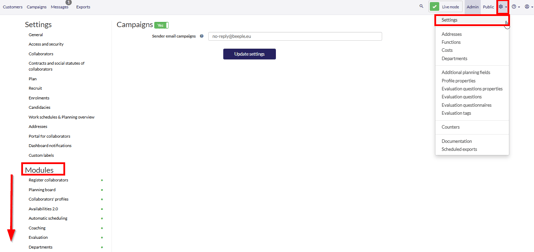
- Go to the gearwheel icon.
- Select "Settings."
- Ensure the "Campaigns" module is active.
- Optionally, you can also enter a different sender email address in these settings.
With the 'Campaigns' module activated, you can send mass communications to selected collaborators via email, SMS, or Beeple Chat.
Collaborators can be chosen manually within the 'Campaigns' menu, or you can target those enrolled in a specific project, subproject, or team.
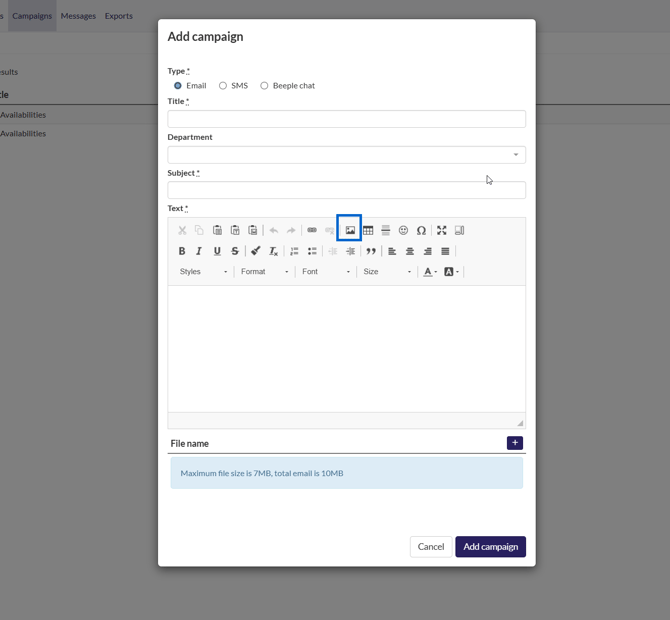
To add images to your campaign text, click on the designated icon. (For details on creating image URLs, refer to the end of this document.)
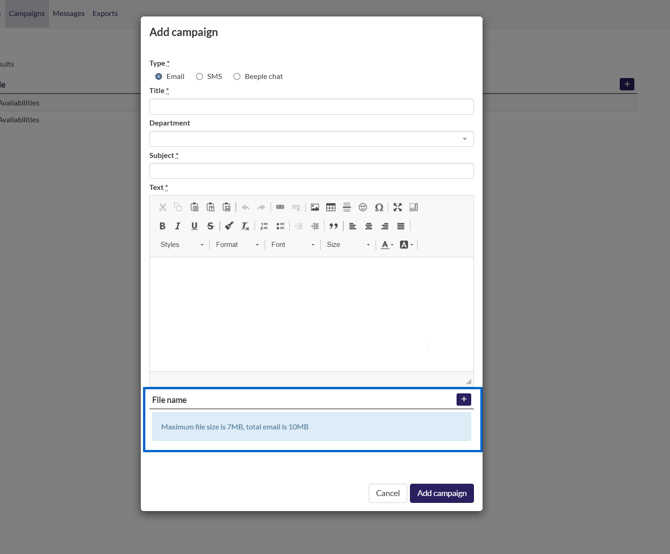
You can also add attachments to email campaigns with this icon:
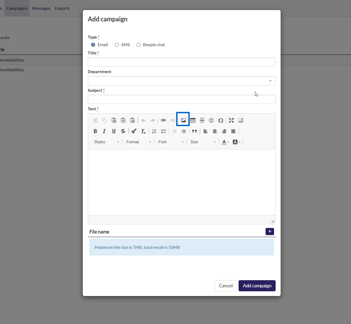
How to add a picture to a campaign?
1. Click on the picture Icon
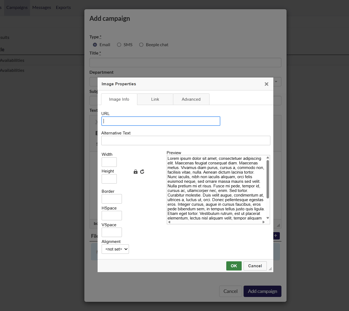
3. Create the Link
You can use online tools to create a link for your image. For example, visit imgur.com and create a free account. This site allows you to generate a free, publicly accessible URL for your image, which can then be used on any website. Note that Beeple URLs are secure.
If you have hosted your picture somewhere yourself, please continue to Step 7
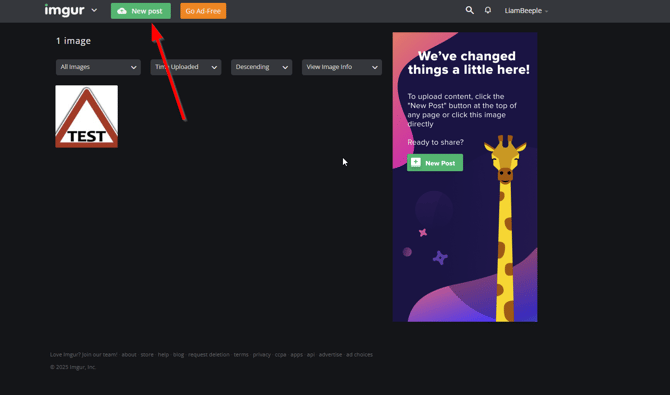
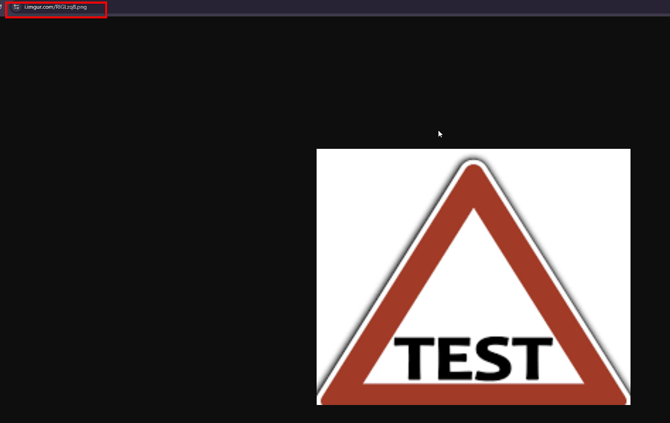
4. Once your picture is uploaded, you will see this overview.
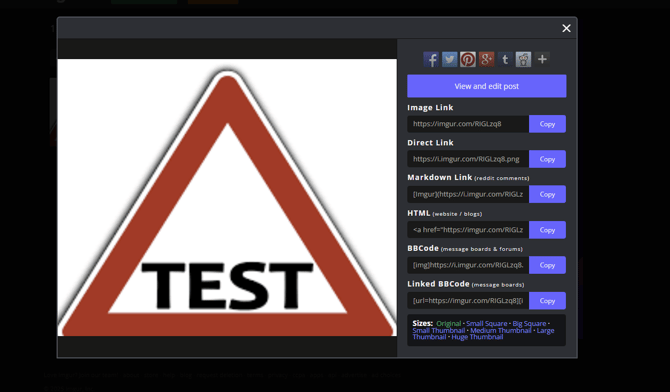
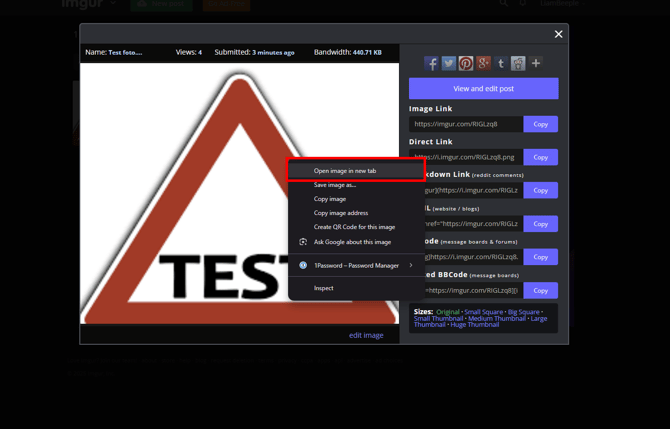
5. Right-click the image and select "Open image in a new tab."
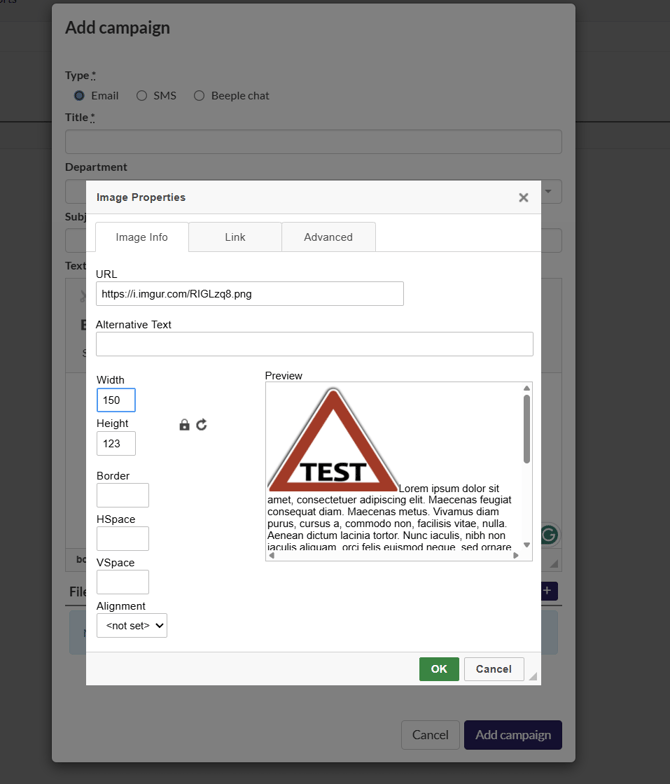
8. Change the width and/or the height of the image.
9. Click the 'Ok' button to confirm.
You have now successfully added an image in the text of your campaign.