.png?width=250&height=103&name=Beeple_Logo_Blue%20(1).png)
To enable additional planning fields:
- Click the gear icon.
- Select "Settings."
- Under "Modules," set "Additional planning fields" to "Yes."
After activation, return to the gear icon and select "Additional planning fields."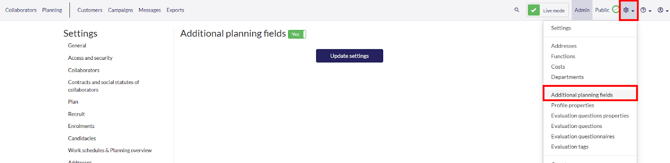
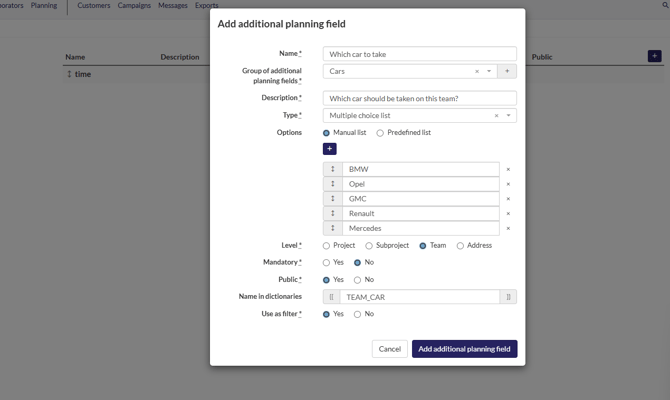
Please complete all mandatory fields:
- Name: The name displayed to administrators and collaborators.
- Group of additional planning fields: Similar to profile properties, these fields can be grouped.
- Description: Provides more information about the field.
- Type: Choose your preferred type for the additional planning field, similar to profile properties.
- Options:
- Manual: Options are entered manually.
- Predefined: Options are based on Functions or Addresses and will automatically update if changes occur.
- Level: Specify the level at which these details should be entered.
- Mandatory: Indicate if administrators/planners are required to complete these fields.
- Public: Determine if collaborators should be able to view this information.
- Name in dictionaries: This code, which must be in CAPS, can be used for exporting these fields later.
- Use as filter: Select if this data should be used to filter Projects, Subprojects, Teams, or Addresses.
- Select “Add additional planning field”
How to update an existing extra planningfield
Select the planningfield you would like to edit
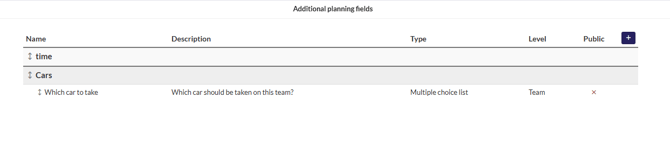
You can now edit all fields except for “Type” & “Level”