.png?width=250&height=103&name=Beeple_Logo_Blue%20(1).png)
To do this:
- Open a new or existing Excel file.
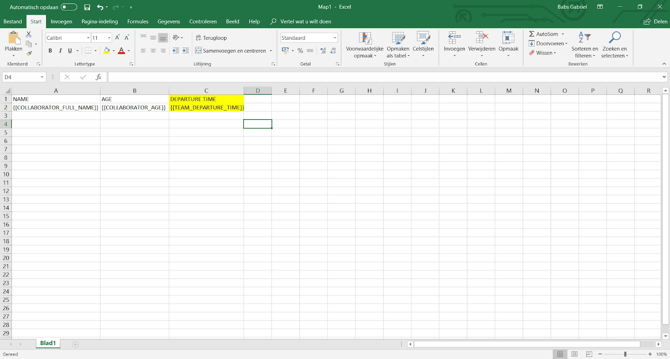
- Add columns for the additional planning field values you want to export.
- Enter the name of the additional planning field as the column title.
- Below the title, enter the correct code for the additional planning field (see example below).
- Code Composition: The code consists of the field's level project/subproject/team and your chosen code (found next to 'Name in dictionaries' in the additional planning field's settings).
- Create or update an Excel export template.
- Perform an export using the uploaded template.
- Your export will appear at the top of the page in the exports overview.
- Refresh the page until the number of rows is displayed next to your export.
- Click on the description to download your export file.
Example:
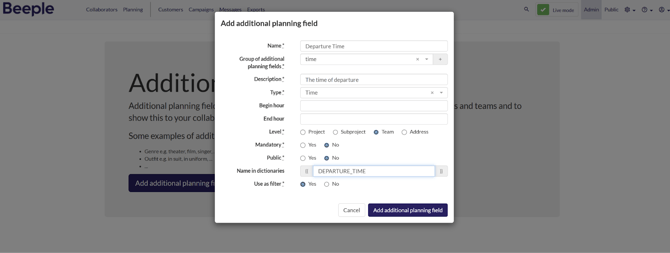
-
{{TEAM_DEPARTURE_TIME}} -
{{1ST_2nd_2nd}}
- The first part indicates the level at which the additional planning field is added.
- The second part is the code you added in the settings for the relevant additional planning field.